UK VAT Calculator
Add or remove VAT at 20%, 5%, or 0% instantly. Free, accurate, and designed for UK accountants and businesses.
Net
£0.00
Tax
£0.00
Gross
£0.00
How to Calculate UK VAT Online
Value Added Tax (VAT) is a consumption tax applied to most goods and services sold in the UK and the Isle of Man. Getting your VAT calculations right matters — whether you're a sole trader sending your first invoice or an accountant managing returns for a dozen clients.
This free VAT calculator lets you add or remove VAT at the standard 20% rate, the reduced 5% rate, or zero rate in just a couple of clicks. No sign-up, no fuss.
A Brief History of VAT Rates in the UK
Value Added Tax was introduced in 1973 as a replacement for Purchase Tax and Selective Employment Tax, when the UK joined the European Economic Community. VAT rates in the UK changed a fair bit since then. The standard VAT rate of 20% has been in place since January 2011 and is now the rate most UK businesses and consumers deal with day to day.
Removing VAT from a Gross Price
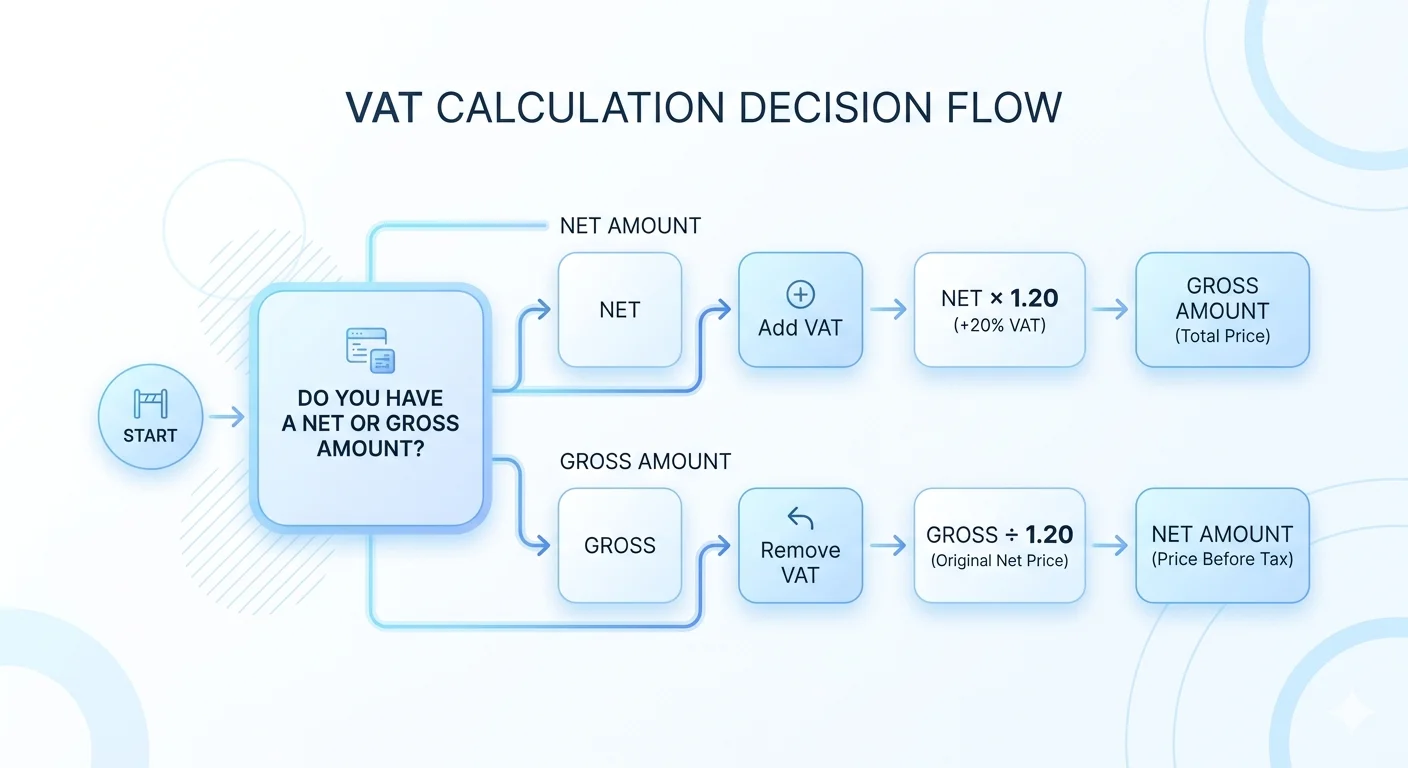
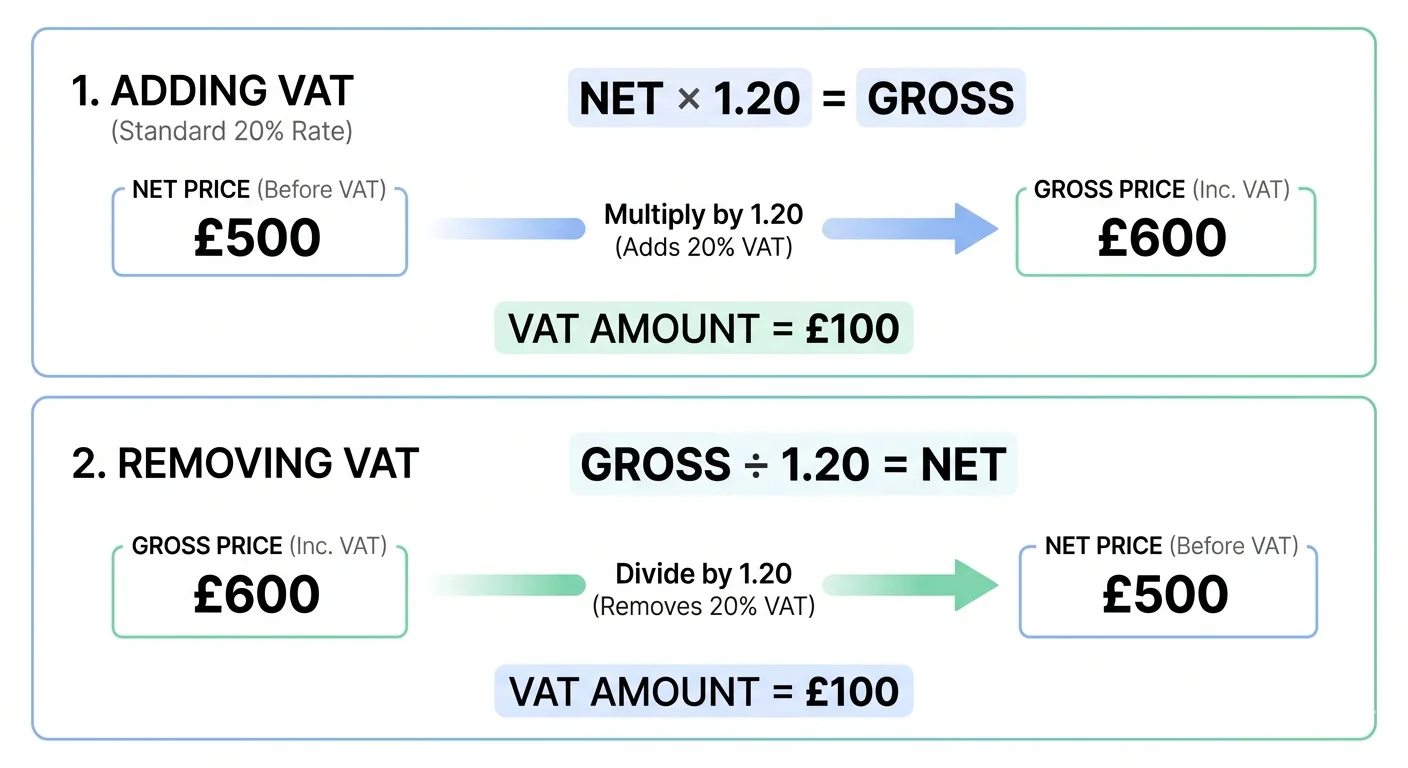
To find the net amount from a VAT-inclusive gross amount, divide the gross by the VAT rate factor. This is useful when you have a VAT-inclusive price and need to work out how much VAT has been added:
Example: £600 ÷ 1.20 = £500 (VAT = £100)
Switch to "Remove Tax" mode in the calculator above to handle this automatically. Whether you're working with VAT-inclusive and VAT-exclusive prices, this free to use tool covers both directions instantly.
Current UK VAT Rates
| Rate | Percentage | Applies To |
|---|---|---|
| Standard | 20% | Most goods and services |
| Reduced | 5% | Home energy, children's car seats, sanitary products |
| Zero | 0% | Most food, children's clothing, books, newspapers |
The standard VAT rate of 20% covers the majority of goods and services provided in the UK. The reduced rate of 5% applies to things like domestic fuel and power, children's car seats, and certain energy-saving materials. Zero-rated goods include most food, children's clothing, and books.
Work Out VAT — Adding VAT to a Net Amount
To add VAT to a net (excluding VAT) price, multiply the net amount by the VAT rate as a decimal. For the standard rate of 20%:
Example: £500 × 1.20 = £600 (VAT = £100)
This gives you the VAT-inclusive gross amount. Use the calculator at the top of the page to work this out instantly — it saves doing the maths every time and reduces the risk of errors on invoices.
VAT for Accountants and Bookkeepers
If you're managing VAT for clients, accuracy is everything. That means getting purchase invoices right, preparing clean VAT returns, and making sure clients understand their obligations around VAT rules and registration thresholds.
Most practices use cloud accounting software like Xero or QuickBooks, which handle VAT percentage calculations automatically. But this handy VAT calculator is genuinely useful for quick sense-checks, preparing quotes, or verifying figures when you're away from your software. The bulk mode lets you use this tool for calculating VAT across multiple line items at once — handy when you're mid-reconciliation and just need a fast answer.
VAT Invoices and Valid VAT Numbers
Once your business is VAT-registered, you're legally required to issue valid VAT invoices for all taxable sales. Each invoice needs to show your VAT number, the VAT rate applied, the net amount, the VAT added, and the gross amount. Getting this right matters — your customers need valid VAT invoices to reclaim input VAT on their end.
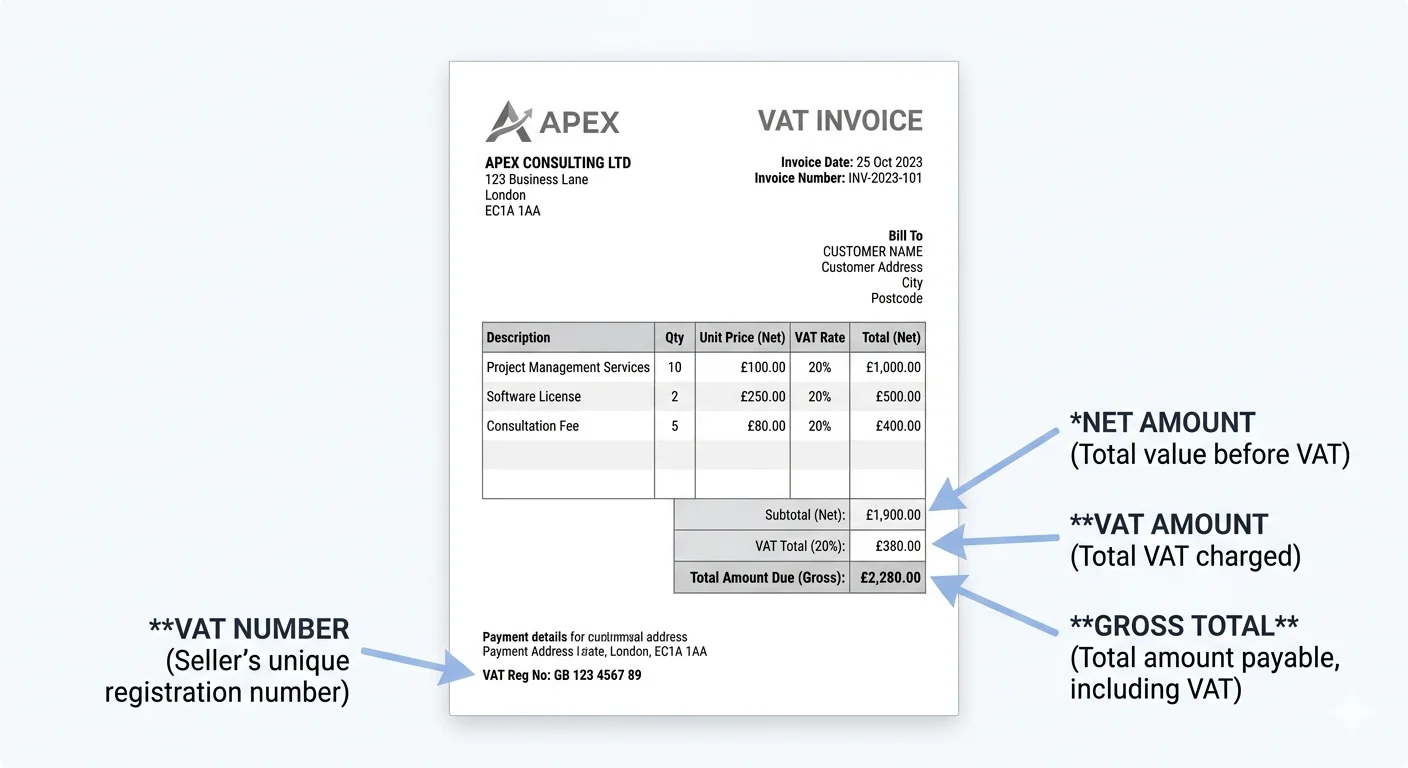
If you're ever unsure whether the figures on an invoice add up, use the VAT calculator as a free double-check before it goes out.
Do You Need to Register for VAT?
Businesses need to register for VAT once their taxable turnover exceeds £90,000 in any rolling 12-month period. From that point, you must charge VAT on your sales and can reclaim input VAT on eligible business purchases — a process often referred to as VAT recovery.
Missing the registration deadline can result in penalties from HMRC, so it's worth keeping an eye on your turnover as you grow. If you're getting close to the threshold, speak to an accountant sooner rather than later.
How to Claim VAT Back
If your business is VAT-registered, you can claim VAT back on goods and services bought for business use. This is handled through your quarterly VAT return, submitted via Making Tax Digital (MTD) compatible software. The VAT you reclaim is called input VAT — offset it against the output VAT you've charged, and the difference is either what you owe HMRC or what they owe you.
Use the VAT calculator to work out VAT on purchase invoices and keep track of the input VAT you're entitled to reclaim throughout the quarter.
Using the VAT Calculator for Invoicing and Quotes
When you're raising an invoice or putting together a quote, it's good practice to show both the VAT-exclusive and VAT-inclusive prices clearly. This calculator gives you both figures the moment you enter either the net amount or the gross amount.
It's particularly useful for sole traders and small businesses that don't run everything through accounting software. It's a free UK VAT calculator that works on any device — no account needed, no download required.
Corporation Tax vs VAT
It's easy to mix these up, but VAT and Corporation Tax are completely separate. VAT is charged on the sale of goods and services and passed on to HMRC, while Corporation Tax is levied on business profits. Both matter for limited companies in the UK, but they're calculated and reported differently. This calculator is built specifically to calculate VAT online — if you need help with Corporation Tax, that's one for your accountant.
Frequently Asked Questions
Embed This Calculator
Add this calculator to your website. Copy the code below and paste it into your HTML.
<iframe src="https://accountingaitools.com/tools/vat-calculator/?embed=true" width="100%" height="500" frameborder="0" title="UK VAT Calculator"></iframe>
<p style="font-size:12px;text-align:center;margin-top:4px;">Powered by <a href="https://accountingaitools.com/tools/vat-calculator/" target="_blank" rel="noopener">AccountingAITools</a></p>